A complete beginner's guide to Google Search Console: how to set it up, what every key report means, how to find quick wins and a weekly SEO routine.
If you only set up one SEO tool, make it Google Search Console. It is free, it comes straight from Google and it shows you something no third-party tool can: how Google itself sees your website. You can find out which searches already bring people to your pages, which pages Google has indexed, which ones it has ignored and why, and what technical problems are holding you back.
This guide walks through Search Console from scratch. You will learn how to set it up, how to read each important report, how to turn the data into practical improvements and how to build a simple routine so the tool becomes a habit rather than a mystery.
What Google Search Console is (and what it is not)
Google Search Console is a free service that reports on your website’s presence in Google Search. It tells you how often your pages appear in results (impressions), how often people click (clicks), where you rank on average and whether Google can crawl and index your pages.
It is different from Google Analytics. Analytics describes what visitors do after they arrive on your site. Search Console describes what happens before the click: how people found you in search, and how healthy your pages are from Google’s point of view. The two tools complement each other, and you should use both.
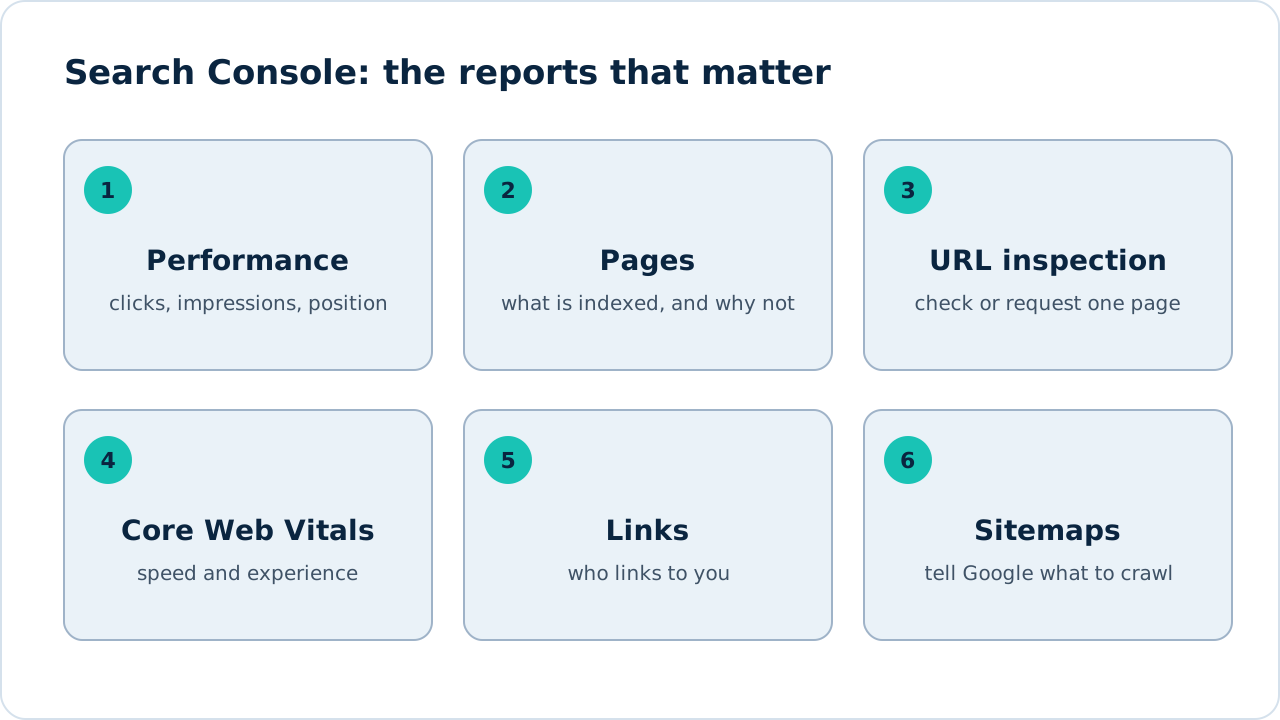
Figure 1: The six reports most site owners use every week.
Step 1: Add and verify your website
- Go to Google Search Console and sign in with a Google account.
- Choose a property type. A domain property covers every version of your address (http, https, www and subdomains) and is usually the best choice. A URL-prefix property covers only the exact address you enter.
- Verify ownership. For a domain property, Google asks you to add a DNS record at your domain provider. For a URL-prefix property you can use an HTML file, a meta tag, Google Analytics or Google Tag Manager.
- Submit your sitemap. Open Sitemaps, enter the address of your XML sitemap, such as
sitemap-index.xml, and submit it. This tells Google which pages you want crawled.
Data begins to appear after a day or two and builds up over time, so be patient on day one. Google’s own Search Console help covers each verification method in detail if you get stuck.
Step 2: Understand the Performance report
The Performance report is where most of your insights live. It shows four core measurements.
- Clicks: how many times people clicked through to your site from Google.
- Impressions: how many times a page of yours appeared in results, whether or not anyone clicked.
- Click-through rate (CTR): clicks divided by impressions.
- Average position: your typical ranking for a search or page. Position 1 is the top organic result.
Figure 2: The Performance report. Replace this placeholder with a screenshot of your own data.
Use the tabs under the chart to switch between Queries (the searches people used), Pages (your URLs), Countries and Devices. Add a filter to focus on one page, one country or one group of queries, and use the date comparison to see whether you are growing or shrinking.
Two warnings help you read the numbers correctly. First, average position blends all the searches a page appears for, so it can mislead on its own. Second, impressions can rise sharply when you start appearing for new searches even if your clicks stay flat. Look at the trend over weeks, not days.
Step 3: Find quick wins in your data
Search Console is most useful when you use it to decide what to do next. Here are four patterns worth checking every month.
| Pattern | What to look for | Likely action |
|---|---|---|
| Near misses | Searches with an average position of about 8 to 30 and decent impressions | Improve the page’s content, headings and internal links |
| Low CTR | Pages with many impressions but few clicks | Rewrite the title and meta description |
| New opportunities | Queries you didn’t plan for that already show your site | Add a section or new page that answers them properly |
| Declining pages | Pages whose clicks dropped compared with the previous period | Check for lost links, outdated content or indexing problems |
Near misses are often the quickest gains. A page sitting on the second or third page of results is already relevant to the search, so stronger content and a few extra internal links can push it onto page one.
Step 4: Read the Pages (indexing) report
The Pages report, found under Indexing, shows how many of your pages are indexed and gives a reason for each page that isn’t. Not every excluded page is a problem, because many are deliberately excluded. What matters is whether your important pages are indexed.
Figure 3: The Pages report lists indexed pages and the reasons others are excluded.
Common reasons you will see:
- Crawled, currently not indexed: Google visited the page but chose not to index it yet. Thin or duplicate content is a frequent cause.
- Discovered, currently not indexed: Google knows the address but hasn’t crawled it. Internal links and a clear sitemap help.
- Excluded by noindex tag: the page tells Google not to index it. Check this was intentional.
- Blocked by robots.txt: your robots file prevents crawling. Make sure it isn’t blocking pages that matter.
- Duplicate without user-selected canonical: Google found near-identical pages and picked one itself. Set a clear canonical tag.
- Not found (404): the address returns an error. Redirect it if it had value, or leave it if it is gone for good.
Click any reason to see the affected pages, fix the cause, then use Validate fix so Google rechecks them.
Step 5: Use URL inspection and request indexing
Paste any address from your site into the search bar at the top to open the URL inspection tool. It shows whether the page is indexed, when Google last crawled it, which canonical Google chose and whether the page is mobile friendly.
Figure 4: URL inspection shows how Google sees a single page.
After you publish an important new page or fix a problem, use Request indexing. It doesn’t guarantee instant results, and repeated requests don’t speed things up, but it is a sensible nudge for pages that matter.
Step 6: Check Core Web Vitals, links and sitemaps
- Core Web Vitals groups your pages by loading speed, responsiveness and visual stability, using data from real visitors. See our guide to Core Web Vitals explained in plain English for what to do about poor scores.
- Links lists which sites link to you, your most linked pages and your internal links. It is a free way to understand your authority and to spot unexpected links.
- Sitemaps shows whether Google could read your sitemap and how many pages it found.
A simple weekly and monthly routine
Every week (15 minutes)
- Open Pages and look for new errors or sudden drops in indexed pages.
- Check Performance for rising and falling queries.
- Choose one page to improve this week.
Every month (45 minutes)
- Compare the last 28 days with the previous period.
- List near-miss queries and low-CTR pages, then update them.
- Review links, Core Web Vitals and sitemap status.
- Record your clicks and impressions in a simple sheet so you can see long-term progress.
Common mistakes to avoid
- Verifying only one version of your address and missing data from the others. A domain property avoids this.
- Ignoring the Pages report until traffic drops.
- Chasing average position instead of clicks, leads and sales.
- Requesting indexing for dozens of pages a day, which doesn’t help.
- Making several big changes at once, so you can’t tell what worked.
Frequently asked questions
Is Google Search Console free?
Yes. It is free for anyone who can verify ownership of a website.
How long until data appears?
Usually within a day or two of verification, although it takes longer for a new site to collect meaningful numbers.
What is the difference between Search Console and Google Analytics?
Search Console shows how people find you in Google Search and how Google sees your site. Analytics shows what visitors do once they arrive.
Does Search Console improve rankings by itself?
No. It is a measurement and diagnostic tool. Rankings improve when you act on what it shows.
Can I use it for more than one website?
Yes. You can add many properties to one account and switch between them.
Next steps
Pair Search Console with keyword research to decide what to write, and use our technical SEO checklist to fix the problems it uncovers. If you’d like an expert to read the data for you, request a free SEO audit.
Sources and further reading
- Google Search Console: the tool itself.
- Search Console Help: Google’s official documentation.
- Google Search Central documentation: how crawling, indexing and ranking work.
See how our SEO services work, or start with a free audit.
See our servicesFree SEO audit