What Core Web Vitals are, what good LCP, INP and CLS scores look like, how to measure them and the most effective fixes for a slow or jumpy website.
Nobody enjoys a slow website. You tap a link, stare at a blank screen, then the page jumps just as you go to press a button. Google measures exactly these frustrations with a set of metrics called Core Web Vitals. They turn the vague idea of a “fast, smooth” site into numbers you can test, track and improve.
This guide explains each of the three Core Web Vitals in plain English, shows what good scores look like, tells you how to measure them and gives you the fixes that make the biggest difference. You don’t need to be a developer to understand the priorities, even if you pass the technical work to one.
What Core Web Vitals are
Core Web Vitals are three measurements of real-world user experience: how quickly the main content loads, how quickly the page responds when someone interacts and how stable the layout is while loading. Google describes them on its Web Vitals page at web.dev.
| Metric | Full name | What it measures | Good score |
|---|---|---|---|
| LCP | Largest Contentful Paint | How long the biggest visible element takes to load | 2.5 seconds or less |
| INP | Interaction to Next Paint | How quickly the page responds to taps, clicks and key presses | 200 milliseconds or less |
| CLS | Cumulative Layout Shift | How much the layout moves unexpectedly | 0.1 or less |
INP replaced an older measure called First Input Delay as a Core Web Vital in 2024, so older articles may mention FID. Google judges these scores using data from real visits, and a page “passes” when most visits meet the good threshold.
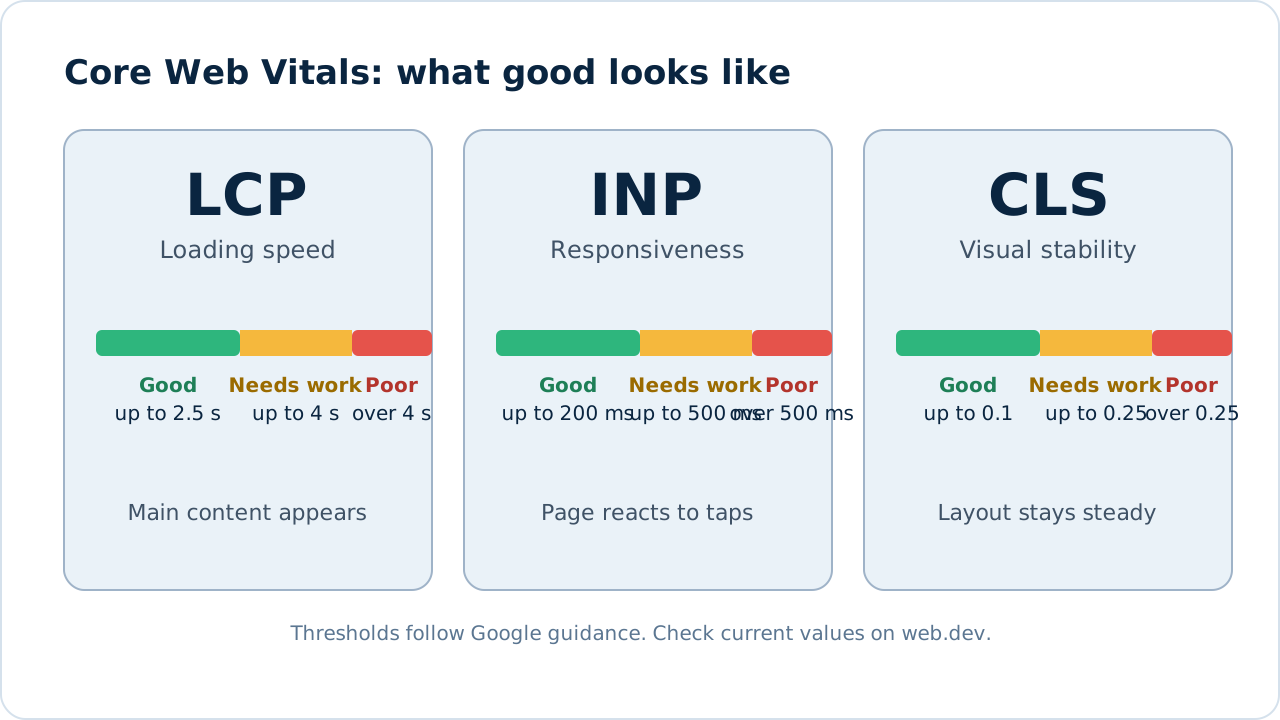
Figure 1: What good, needs improvement and poor look like for LCP, INP and CLS.
Do Core Web Vitals affect rankings?
Google has said that page experience, including Core Web Vitals, is one of many signals used in ranking. It is not the most important one. A page with excellent speed but unhelpful content will not outrank a more useful page. However, speed matters in two ways that affect your results: it can act as a tiebreaker between similar pages, and it directly affects whether visitors stay, read and contact you. You can read Google’s perspective on page experience.
Field data vs lab data
You will see two kinds of numbers, and they can differ.
- Field data comes from real users’ browsers. It reflects actual devices, networks and behaviour, and it is what Google uses. You see it in Search Console and in the top section of PageSpeed Insights.
- Lab data comes from a simulated test run once. It is useful for debugging because it is repeatable, but it is not what real visitors experience.
Always treat field data as the goal and lab data as the tool for finding causes.
How to measure your scores
- PageSpeed Insights: enter a page address at pagespeed.web.dev. Look at the mobile result first, because most visitors use phones.
- Search Console: the Core Web Vitals report groups pages by status. See our Search Console guide for how to read it.
- Browser tools: Chrome DevTools and Lighthouse help developers find which elements cause the problems.
Figure 2: A PageSpeed Insights report. Replace with a screenshot of your own site’s results.
Largest Contentful Paint (LCP)
LCP marks the moment the largest piece of content, usually a hero image, a large heading or a block of text, becomes visible. Slow LCP makes a site feel like it is hanging. See Google’s detailed guide to LCP.
Common causes
- Large, uncompressed images or videos at the top of the page.
- Slow hosting or no caching.
- Render-blocking scripts and styles.
- Web fonts that load late.
How to fix it
- Compress and resize the main image, and use a modern format such as WebP or AVIF.
- Don’t lazy-load the main top-of-page image. Load it first and give it priority.
- Use caching and a content delivery network (CDN).
- Remove or delay scripts that aren’t needed immediately.
- Choose faster hosting if your server response is slow.
Interaction to Next Paint (INP)
INP measures how long the page takes to respond visually after a tap, click or key press, and reports one of the slowest interactions during a visit. Poor INP feels like a page that is frozen or laggy. Read Google’s guide to INP.
Common causes
- Too much JavaScript running on the page.
- Third-party scripts such as chat widgets, ad scripts, trackers and heavy social embeds.
- Complex page builders and large, slow interfaces.
How to fix it
- Remove plugins and scripts you don’t need.
- Load third-party tools after the page is usable, or only when needed.
- Break up long tasks so the browser can respond.
- Keep the page structure simple.
Cumulative Layout Shift (CLS)
CLS adds up how much visible content moves unexpectedly while the page loads. It is the cause of misplaced taps, such as hitting a different button because an ad pushed the page down. See the guide to CLS.
Common causes
- Images and videos with no set width and height.
- Ads, banners and embeds that appear late.
- Fonts that swap and change the text size.
- Content inserted above existing content.
How to fix it
- Always set width and height (or an aspect ratio) on images and embeds.
- Reserve space for ads, banners and cookie notices.
- Avoid inserting new content above what is already visible.
- Load fonts in a way that avoids a visible jump.
Which fixes to do first
Start with the changes that help the most pages for the least effort.
- Images: compress and resize them. This often fixes LCP quickly.
- Unused scripts and plugins: removing them helps both LCP and INP.
- Caching and CDN: speeds up every visit.
- Layout stability: add image dimensions and reserve space for dynamic content.
- Mobile first: test and tune for phones, then check desktop.
Tips by type of site
- WordPress: use a lightweight theme, a caching plugin, image optimisation and avoid stacking plugins.
- Website builders: use their image optimisation features and limit heavy animations and embeds.
- Custom or static sites: audit scripts, use modern image formats and serve assets with long cache times.
How to keep scores healthy
Speed gets worse over time as people add images, scripts and tools. Check your key pages monthly in Search Console, test after each major change and set rules such as image size limits for anyone who edits the site.
Frequently asked questions
What are good Core Web Vitals scores?
LCP of 2.5 seconds or less, INP of 200 milliseconds or less and CLS of 0.1 or less, for most visits.
Why are my lab and field scores different?
Lab tests use one simulated device and connection, while field data reflects many real visits with different devices and networks.
Will a perfect score guarantee higher rankings?
No. Core Web Vitals are one signal among many. Helpful content, relevance and trust remain essential.
How long do improvements take to show in Search Console?
Field data is gathered over a rolling period, so changes can take several weeks to be reflected.
Do I need a developer?
Many fixes, such as compressing images and removing plugins, are manageable without one. Script and code changes usually need technical help.
Next steps
Speed is one part of technical health. Work through our technical SEO checklist, or request a free SEO audit and we’ll test your key pages and show you what to fix first. You can also read about our technical SEO service.
Sources and further reading
- Web Vitals overview: the official definitions and thresholds.
- Largest Contentful Paint, Interaction to Next Paint and Cumulative Layout Shift: detailed guides to each metric.
- Understanding page experience in Google Search: how Google treats page experience.
- PageSpeed Insights: the free testing tool.
See how our SEO services work, or start with a free audit.
See our servicesFree SEO audit