Five simple checks to see whether Google has found and indexed your website, how to read the results and exactly what to do if pages are missing.
If Google hasn’t found a page, it can’t show it in search results, no matter how good the page is. That sounds obvious, yet a surprising number of websites have important pages that Google has never indexed, or that were quietly blocked months ago by a leftover setting. The good news is that you can check in minutes, with no special tools and no technical background.
This article gives you five quick checks, explains how to read what you see and shows you what to do when something is missing. By the end, you will know whether Google can find your site and where to look if it can’t.
First, how Google finds pages
Before you run the checks, it helps to understand the three steps behind every search result.
- Crawling: Google’s programs follow links and sitemaps to discover pages.
- Indexing: Google analyses a page and stores it in its index.
- Ranking: when someone searches, Google picks pages from the index and orders them.
A page that is never crawled can’t be indexed, and a page that isn’t indexed can’t rank. Problems at the first two steps are the most common reason a good page gets no traffic. Google explains the process in its guide to how Search works.
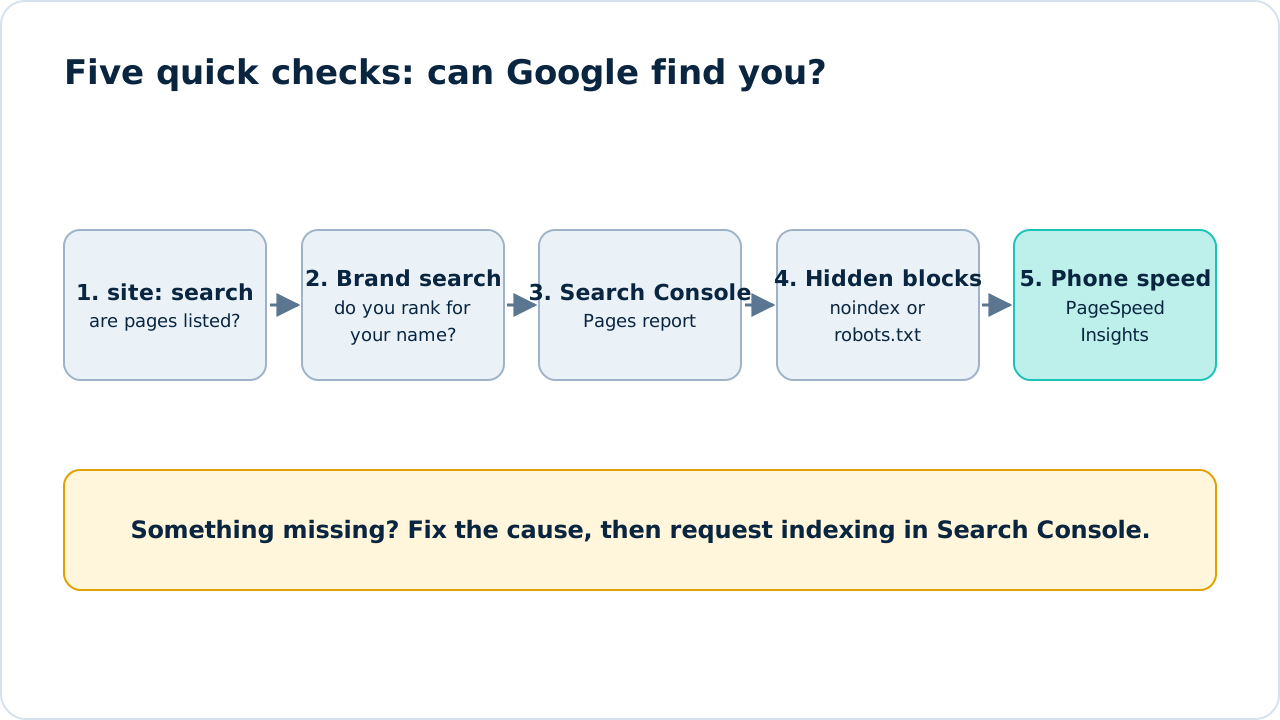
Figure 1: The five checks in order. Each one narrows down where the problem is.
Check 1: Search for your site by address
Type site:yourwebsite.com into Google, replacing the address with your own. Google lists pages it has indexed from that site.
Figure 2: A site: search shows a rough picture of what Google has indexed.
How to read it:
- Many results: Google has indexed a good number of your pages. Scan the list to check your key pages are included.
- A few results: Google may have found only part of your site. Look for missing sections.
- No results: your site may not be indexed at all, which is urgent. Go straight to Check 3.
The number shown is only an estimate, so don’t treat it as an exact count. It is a quick signal, not an audit.
Check 2: Search for your business name
Search for your exact business name in quotation marks. Your website should appear on the first page, usually at or near the top.
- If your site appears, Google knows who you are.
- If only social profiles, directories or reviews appear, your website may be new, not indexed or lacking authority.
- If a different business with a similar name appears, you may need clearer branding, a complete Google Business Profile and consistent details across the web.
Also search for your main service with your location, such as “accountant in Lagos”. You may not rank first yet, but knowing where you currently stand gives you a baseline.
Check 3: Look at Google Search Console
Search Console gives you the real answer, directly from Google. If you haven’t set it up, our complete Search Console guide shows how.
- Open Indexing, then Pages. You will see how many pages are indexed and the reasons others are not.
- Paste an important address into the search bar at the top to open URL inspection.
- Read the verdict: “URL is on Google” or “URL is not on Google”.
Figure 3: URL inspection tells you whether a specific page is indexed and why.
Pay attention to the reason. “Discovered, currently not indexed” means Google knows the page exists but hasn’t crawled it yet. “Crawled, currently not indexed” means Google looked and decided not to include it, often because the content is thin, duplicated or low value.
Check 4: Look for hidden blocks
Two settings quietly keep pages out of search, and both often survive from the time a site was being built.
A noindex tag. This is a line in the page’s code that tells Google not to index it. Many website builders and SEO plugins have a setting such as “discourage search engines from indexing this site”. If it is switched on, your whole site can disappear from results.
A robots.txt block. The file at yourwebsite.com/robots.txt can tell Google not to crawl certain areas. A line that reads Disallow: / blocks the entire site.
Search Console will flag these as “Excluded by noindex tag” or “Blocked by robots.txt”. Google’s documentation on robots.txt explains how the file works. Check that anything blocked is blocked on purpose.
Check 5: Test speed and mobile on a phone
Slow or broken pages are less likely to be crawled thoroughly, and they lose visitors who arrive. Run your home page through PageSpeed Insights and look at the mobile result first. Then open your site on a real phone and try to use it: read the text, tap the menu and fill in a form.
Look for text that is too small, buttons too close together, pop-ups that cover the content and pages that take more than a few seconds to appear. If you see problems, our Core Web Vitals explainer covers the fixes.
What to do if pages are missing
- Fix the cause. Remove a stray noindex tag, unblock the page in robots.txt, merge duplicate pages or improve thin content.
- Check your sitemap. Make sure it lists the pages you want indexed and nothing else, and that it is submitted in Search Console.
- Link to the page. Add internal links from other relevant pages. Pages with no links pointing to them are hard for Google to discover.
- Request indexing. Use URL inspection and select Request indexing for pages that matter.
- Wait and recheck. Indexing can take from a few days to a few weeks. Check again before making more changes.
How long does indexing take?
There is no fixed answer. A new page on an established site can appear within days, while a new site may take longer. Quality, internal links and site health all play a part. Repeatedly resubmitting the same page doesn’t speed things up.
Frequently asked questions
Why is my site not showing on Google?
The most common reasons are that it is new and hasn’t been crawled yet, that a noindex tag or robots.txt rule blocks it, or that Google found it but chose not to index thin or duplicate pages.
Does a site: search show every indexed page?
No. It gives a rough guide only. Use Search Console for accurate data.
Can I pay Google to index my site faster?
No. Paid advertising and organic indexing are separate. You can only improve your chances by making pages accessible, useful and well linked.
How often should I run these checks?
Run them after launching or redesigning a site, and then once a month. Use Search Console for ongoing monitoring.
Next steps
If something is wrong and you aren’t sure why, work through our technical SEO checklist, or request a free SEO audit and we’ll show you what is holding your site back.
Sources and further reading
- How Google Search works: Google’s explanation of crawling, indexing and ranking.
- Introduction to robots.txt: how the file controls crawling.
- Google Search Console: the free tool used in Check 3.
- PageSpeed Insights: the free speed test used in Check 5.
See how our SEO services work, or start with a free audit.
See our servicesFree SEO audit